
Generate API Key and Secret
Generate your API key and optionally provide an RSA public key
API keys are cryptographic credentials that authenticate your application when making requests to the Zodia Markets REST and WebSocket APIs. This guide explains how to generate, configure, and secure your API keys.
Understanding API Keys
Section titled “Understanding API Keys”Key Components
Section titled “Key Components”Each API key consists of two parts:
| Component | Description | Usage |
|---|---|---|
| API Key | Public identifier (like a username) | Sent in the Rest-Key header on every request |
| API Secret | Private credential (like a password) | Signs the request on your side; only the resulting signature is sent, in Rest-Sign. The secret itself is never transmitted with a request — it is disclosed only once, when the key is issued or regenerated |
Generating API Keys
Section titled “Generating API Keys”Step 1: Access API Settings on Zodia Markets Customer Portal
Section titled “Step 1: Access API Settings on Zodia Markets Customer Portal”- Log in to your account on the Zodia Markets Customer Portal
- Click on your profile icon in the top-right corner
- Select SETTINGS from the dropdown menu
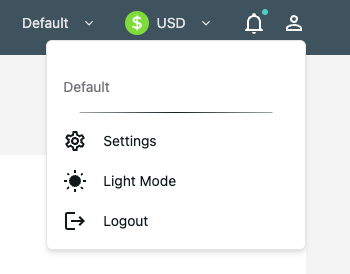
Step 2: Navigate to API Keys
Section titled “Step 2: Navigate to API Keys”- In the Settings page, click the API Keys tab
- Click Create New API Key
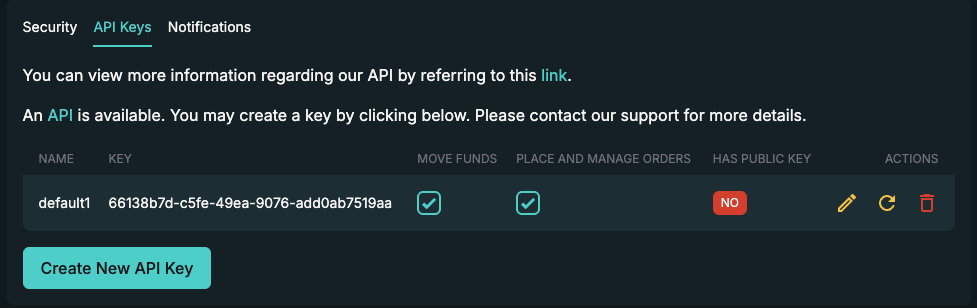
Step 3: Confirm Signed Intent
Section titled “Step 3: Confirm Signed Intent”For customers requiring the highest level of security and non-repudiation, Zodia Markets supports cryptographically signed orders using RSA key pairs. This feature is optional and can be skipped when creating an API key.
See the Signed RSA Key page for full details on providing RSA key pairs on API key registration.
Step 4: Assign Permissions
Section titled “Step 4: Assign Permissions”API keys can be configured with different permission levels:
| Permission | Description |
|---|---|
| Move Funds | Allows movement of balances between sub-accounts |
| Place and Manage Orders | Allows trade execution on the RFS Websocket |
If both options are toggled off, these are considered to be read only keys.
Step 5: Save Your Credentials
Section titled “Step 5: Save Your Credentials”- Your API Key and API Secret will be displayed
- Immediately copy and securely store both values
- Click SAVE
Managing Multiple API Keys
Section titled “Managing Multiple API Keys”You can create multiple API keys to:
- Separate keys for different applications or environments
- Implement different permission levels for different services
- Rotate keys without service disruption
- Isolate security boundaries between systems