
Enhanced Security: Upload Public RSA Key (Optional)
For customers requiring the highest level of security and non-repudiation, Zodia Markets supports cryptographically signed orders using RSA key pairs.
What Is Signed Intent?
Section titled “What Is Signed Intent?”Signed Intent allows you to:
- Cryptographically sign critical order parameters (quote ID, side, quantity)
- Prevent tampering by middleware or intermediate systems
- Ensure non-repudiation - prove the order came from you
- Add verification layer beyond standard API authentication
Setting Up Signed Intent (One-Time)
Section titled “Setting Up Signed Intent (One-Time)”Prerequisites
Section titled “Prerequisites”Before sending signed orders, you must:
- Generate an RSA key pair
- Register your public key with Zodia Markets via the Customer Portal when creating an API key.
- Securely store your private key
Step 1: Generate RSA Key Pair
Section titled “Step 1: Generate RSA Key Pair”Generate a 4096-bit RSA key pair using OpenSSL:
# Generate private key (keep this secure and never share)openssl genrsa -out zodia_private_key.pem 4096
# Extract public key (share this with Zodia Markets)openssl rsa -pubout -in zodia_private_key.pem -out zodia_public_key.pem
File Output:
zodia_private_key.pem- Keep secure, never sharezodia_public_key.pem- Share with Zodia Markets
Step 2: Verify Your Public Key Format
Section titled “Step 2: Verify Your Public Key Format”Your public key should look like this:
-----BEGIN PUBLIC KEY-----MIICIjANBgkqhkiG9w0BAQEFAAOCAg8AMIICCgKCAgEAy...... [Base64 Encoded Key Data] ......-----END PUBLIC KEY-----Format Requirements:
- Algorithm: RSA
- Key Size: 4096 bits (preferred) or 2048 bits (minimum)
- Format: PEM (X.509 SubjectPublicKeyInfo)
- Encoding: Base64
Verify your key format:
# Display key detailsopenssl rsa -pubin -in zodia_public_key.pem -text -noout
# Should show: "Public-Key: (4096 bit)"
Step 3: Register Your Public Key
Section titled “Step 3: Register Your Public Key”Via Customer Portal
-
Log in to the Customer Portal
-
Navigate to Settings → API Keys
-
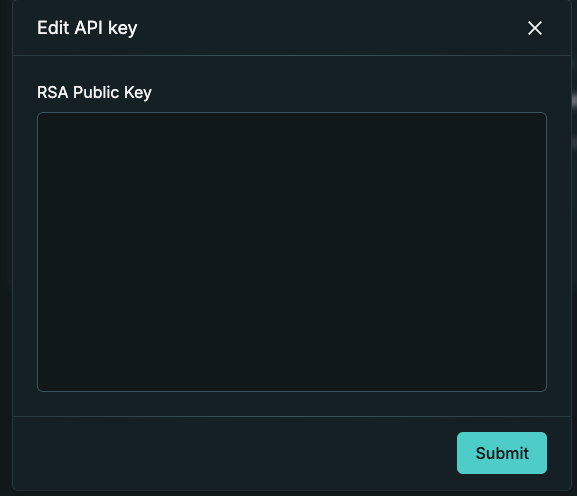
Click Create New API Key or edit an existing key by clicking on the pen icon. If creating a new key, you will be prompted if you wish to upload an RSA public key
-
Paste the contents of your
zodia_public_key.pemfile to the box and click Submit.
Using Signed Intent in Orders
Section titled “Using Signed Intent in Orders”Once your public key is registered, you can include signed intent in your order requests over the WebSocket. See the Signed Order Intent for WebSocket section for details.
Frequently Asked Questions
Section titled “Frequently Asked Questions”Q: Do I need to assign RSA key to every API key I generate?
A: No. You can generate API keys with or without RSA keys.
Q: Is Signed Intent required for all orders?
A: No, it’s optional. Standard API authentication is sufficient for most use cases. Signed Intent adds an extra security layer for customers requiring it.
Q: How do I know if my public key registration is complete?
A: You’ll receive confirmation from Zodia Markets when your key is registered. You can also verify by attempting a signed order.
Q: Can I rotate my RSA signing keys?
A: Yes. Generate a new key pair and register the new public key. We’ll maintain both keys during a transition period.
Q: What key size should I use for signing keys?
A: We recommend 4096-bit keys for maximum security. 2048-bit is the minimum supported. Base 64 encoding is required on the payload encryption.